FREE · LOCAL FIRST

Download Harmony.

One package: desktop app and terminal agent. Connect coding CLIs you already use. Code and prompts stay on this machine unless you send a workspace to Harmony Cloud. Provider credentials stay with the CLI you chose.

Harmony is the product. The desktop app, the harmony command, and this website use that name. The terminal surface is the Harmony TUI; it still launches as nala, and some installer files still start with NALA-, because that is the original binary name; renaming them would break existing installs. Both talk to the same local workspace.

Matching your system

One primary download for your platform. Other builds stay under Other downloads below.

Other downloads and install optionsOther platforms, terminal install, checksums, first open
TERMINAL INSTALL

Install from your terminal

The generated installer pins the current version, verifies exact size and SHA-256, checks native signatures when present, and stops on any mismatch. Choose the shell you already use.

powershell -Command "irm 'https://ideharmony.com/install.ps1' | iex"

Runs from Command Prompt and PowerShell alike. Use this if you are not sure which you have.

The command failed: what the error means

Your prompt shows PS C:\> in PowerShell and C:\> without the PS in Command Prompt.

The token '&&' is not a valid statement separator

You are in PowerShell, but ran a Command Prompt line. Use the PowerShell command instead. Your prompt starts with PS when you are in PowerShell.

'irm' is not recognized as an internal or external command

You are in Command Prompt, but ran a PowerShell line. Use the Windows (any terminal) command on /download. It works from Command Prompt.

'sh' is not recognized as an internal or external command

You are in Command Prompt, but ran the macOS and Linux line. Windows ships curl, but it has no sh, so the pipe had nowhere to go. Use the Windows (any terminal) command on /download, or open PowerShell and use the short Windows line.

A parameter cannot be found that matches parameter name 'fsSL'

You are in PowerShell, but ran the macOS and Linux line. In Windows PowerShell curl is an alias for Invoke-WebRequest, which has no -fsSL switch. You are already in the right shell for the short Windows line: irm <host>/install.ps1 | iex

cannot be loaded because running scripts is disabled on this system

PowerShell's execution policy blocked a saved .ps1 file. This affects saved files only, never the piped one-liner. Run it as: powershell -ExecutionPolicy Bypass -File .\install-nala.ps1

syntax error near unexpected token

The server returned an HTML error page instead of the script, and your shell tried to execute the HTML. Fetch it without piping first (curl -fsSL <url> | head) to see the real error. A 403 or 404 will be visible there.

command not found: nala

The install finished but your shell has not picked up the new PATH yet. Open a new terminal, or check that the install directory is on your PATH.

v3.25.2-preview.1 · preview · manifest pinned at request time
01

Download

Short-lived private object URL

02

Verify

Exact bytes and SHA-256

03

Choose

Agent, desktop, or both

NATIVE ARTIFACTS

Download for another platform

Only platforms with a real artifact are listed. Unpublished targets (for example Windows ARM64 or RPM) stay off the grid rather than offering a dead download.

Windows

1 published

Squirrel installer

Windows x64

219.8 MB

Harmony-3.25.2-preview1.Setup.exe

Exact size

230,523,392 bytes

Verify this downloadSHA-256

SmartScreen may ask once on first open (More info → Run anyway). Match the SHA-256 below to the file you downloaded.

13a07485fad3837cdc5825d9c5f4d405576d8bdefc36ec66a48bfbdda4c8bdf4
Download · 219.8 MB

macOS

2 published

DMG

macOS Apple Silicon

177.4 MB

NALA-3.25.2-preview.1-arm64.dmg

Exact size

186,049,912 bytes

Verify this downloadSHA-256

macOS may ask once on first open (Privacy & Security → Open Anyway). Match the SHA-256 below first.

419ba918ebe6da0f4aec241bbcebabbbde9db955bff6d25b9e726e3526d770b2
Download · 177.4 MB

DMG

macOS Intel

181.6 MB

NALA-3.25.2-preview.1-x64.dmg

Exact size

190,392,455 bytes

Verify this downloadSHA-256

macOS may ask once on first open (Privacy & Security → Open Anyway). Match the SHA-256 below first.

585aa5dac7291e81d8f0f313d4ec4d31301d657a8f2e4834fa0dc80e54002128
Download · 181.6 MB

Linux

2 published

DEB package

Linux x64

276.2 MB

nala_3.25.2-preview.1_amd64.deb

Exact size

289,643,788 bytes

Verify this downloadSHA-256

Match the SHA-256 below before installing with your package manager.

c0748261e767438efdb04506c8fa9430e147999af6193b063a5bf00a16e9e7e9
Download · 276.2 MB

AppImage

Linux x64

397.6 MB

Harmony-3.25.2-preview.1-x64.AppImage

Exact size

416,934,392 bytes

Verify this downloadSHA-256

Match the SHA-256 below, then make the file executable. Shell steps are under Other downloads.

4b1c375701d6a005bfbcba64be86aae94509c9b6fbfc66dd7bfd7b705e78bc69
Download · 397.6 MB
AFTER INSTALL

Both sides of Harmony, one package

Interactive shell installs offer these choices immediately. You can use the same commands later from any new terminal.

launch menu

$ nala # agent in this terminal

$ nala desktop # full desktop

$ nala desktop --agent # desktop + active agent

THE FIRST SESSION

What happens after install

01

Connect an agent

Point Harmony at a coding agent you already pay for. Provider credentials stay with that CLI, on the machine where it runs. Harmony Core is not a Harmony gateway.

02

Put work on the task board

Split the job into tasks agents can claim so two tabs do not start the same item.

03

Watch handoffs and status

Agents pass work through durable messages. Status must be proven, and by default approvals wait for you.

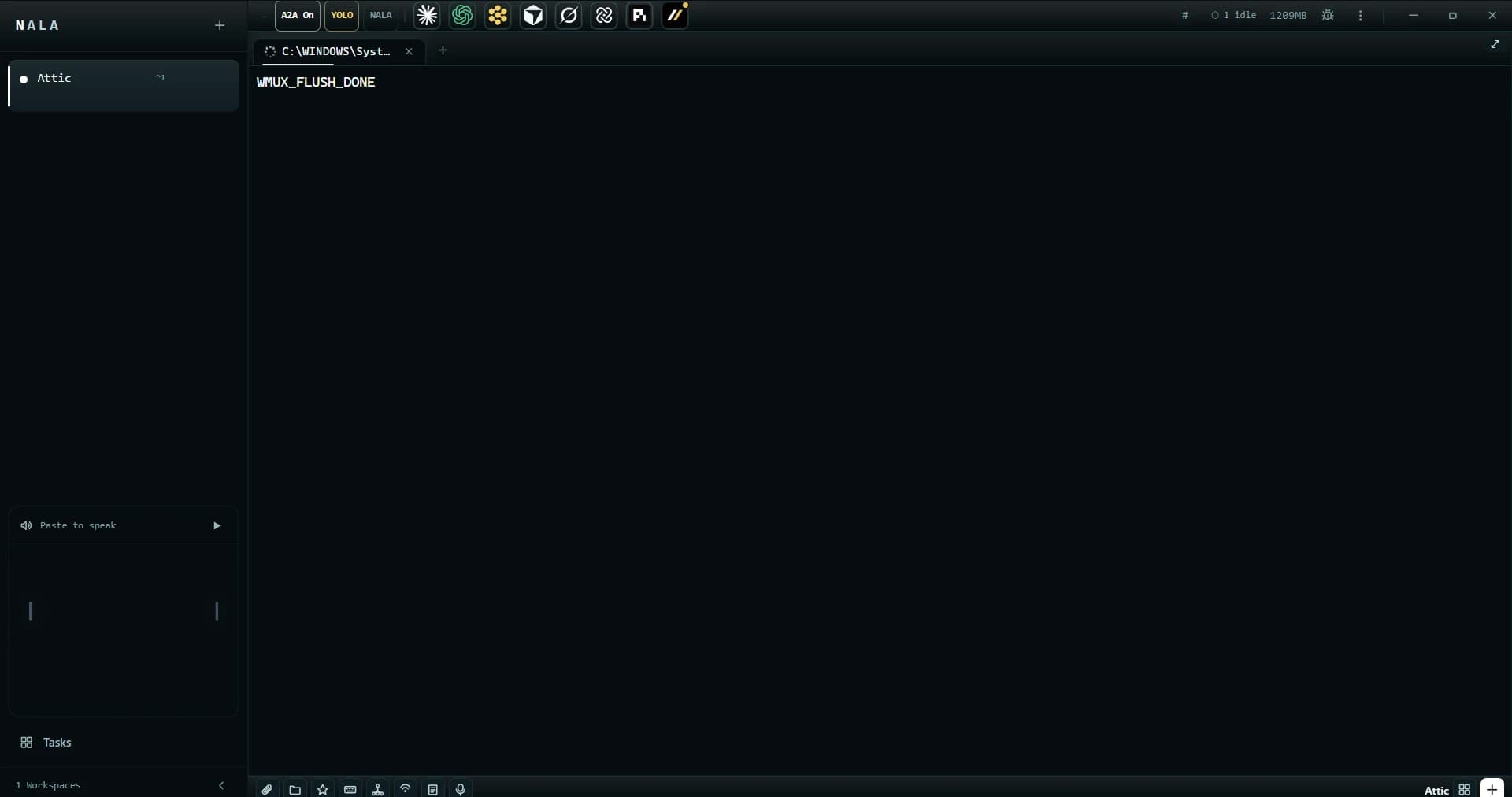
The Harmony desktop app on first launch: one empty workspace, ready for an agent
First launch: one quiet workspace. Connect an agent and it fills up.
FIRST OPEN

Exact steps for each system

The trust status and checksum are stated beside the chosen download. These are the detailed first-run paths if your operating system pauses it.

Windows

What Windows may show

Windows SmartScreen will interrupt with "Windows protected your PC" and hide the run button behind More info.

Windows protected your PC

Microsoft Defender SmartScreen prevented an unrecognized app from starting. Running this app might put your PC at risk.

  1. Quit Harmony first if it is already running (tray icon, right-click, Shut down). An upgrade installed over a running copy can fail partway.
  2. Run the installer you just downloaded (Squirrel Setup).
  3. When SmartScreen appears, click "More info" - the Run anyway button is hidden until you do.
  4. Click "Run anyway". Windows will not ask again for this build.
  5. Already have Harmony installed? Check for updates from inside the app instead. That path is built for a running app and does not need any of this.

Checksum for windows-x64 · 219.8 MB

Verify this downloadSHA-256

SmartScreen may ask once on first open (More info → Run anyway). Match the SHA-256 below to the file you downloaded.

13a07485fad3837cdc5825d9c5f4d405576d8bdefc36ec66a48bfbdda4c8bdf4

macOS

What macOS may show

macOS will say "NALA is damaged and can't be opened. You should move it to the Trash." It is not damaged - that is what Gatekeeper says about an app we have not notarized with Apple yet. Do not move it to the Trash.

“NALA” is damaged and can’t be opened.

You should move it to the Trash. (This is Gatekeeper on an unsigned app, not a corrupt download. Dismiss with Cancel, not Trash.)

  1. Verify the SHA-256 below against the downloaded DMG before anything else (shasum -a 256 in Terminal). Matching digests mean the file was not swapped in transit.
  2. Open the DMG and drag NALA into Applications as usual.

Your browser identifies this Mac but does not share its macOS version. Choose the matching version below.

Choose your macOS version

macOS 15 Sequoia

double-click NALA and dismiss the damaged dialog with Cancel, not Move to Trash. Then open System Settings → Privacy & Security, scroll to the Security section, and click Open Anyway next to the NALA notice (it stays there for about an hour after the blocked attempt). Authenticate, then click Open in the final dialog. Note: Control-click → Open no longer overrides Gatekeeper for unnotarized apps on Sequoia - the System Settings route is the only one.

macOS 13 Ventura or 14 Sonoma

in Applications, Control-click (or right-click) NALA and choose Open, then click Open in the dialog. macOS remembers the exception. The System Settings → Privacy & Security → Open Anyway route above also works.

macOS 12 Monterey or earlier

Control-click → Open works the same way. If it is refused, use System Preferences → Security & Privacy → General → Open Anyway.

Terminal alternative for any macOS version: removes the quarantine flag from NALA alone and changes nothing system-wide. Never run sudo spctl --master-disable to install us - if any guide tells you to disable Gatekeeper globally, that guide is wrong, including an old version of ours.

xattr -d com.apple.quarantine /Applications/NALA.app

Checksum for mac-arm64 · 177.4 MB

Verify this downloadSHA-256

macOS may ask once on first open (Privacy & Security → Open Anyway). Match the SHA-256 below first.

419ba918ebe6da0f4aec241bbcebabbbde9db955bff6d25b9e726e3526d770b2

Linux (AppImage)

What Linux (AppImage) may show

Linux AppImages are not code-signed the way Windows and macOS executables are. Trust the SHA-256 on this page, then make the file executable.

  1. Download the AppImage from this page (size is large - often hundreds of MB).
  2. Verify the SHA-256 matches the passport on this page before running anything.
  3. Make it executable and launch it.

Run from the directory where you saved the AppImage.

chmod +x ./Harmony-3.25.2-preview.1-x64.AppImage && ./Harmony-3.25.2-preview.1-x64.AppImage

Checksum for linux-appimage-x64 · 397.6 MB

Verify this downloadSHA-256

Match the SHA-256 below, then make the file executable. Shell steps are under Other downloads.

4b1c375701d6a005bfbcba64be86aae94509c9b6fbfc66dd7bfd7b705e78bc69

Linux (DEB)

What Linux (DEB) may show

This package is not code-signed. Install only after the SHA-256 on this page matches the file on disk.

  1. Download the package for your distro from the published artifacts above.
  2. Verify the SHA-256 against the passport before installing.
  3. Install with your package manager (for example dpkg -i or rpm -i), or open the file with your software installer.

Checksum for linux-deb-x64 · 276.2 MB

Verify this downloadSHA-256

Match the SHA-256 below before installing with your package manager.

c0748261e767438efdb04506c8fa9430e147999af6193b063a5bf00a16e9e7e9

Get the install command by email

Useful on mobile or while waiting for an unpublished platform. We send a confirmation email first; confirm it and the welcome mail carries the one-line install command. Downloads never require an email address. This form is not a Harmony Cloud waitlist.